Connect Syncly MCP to Claude and AI Clients

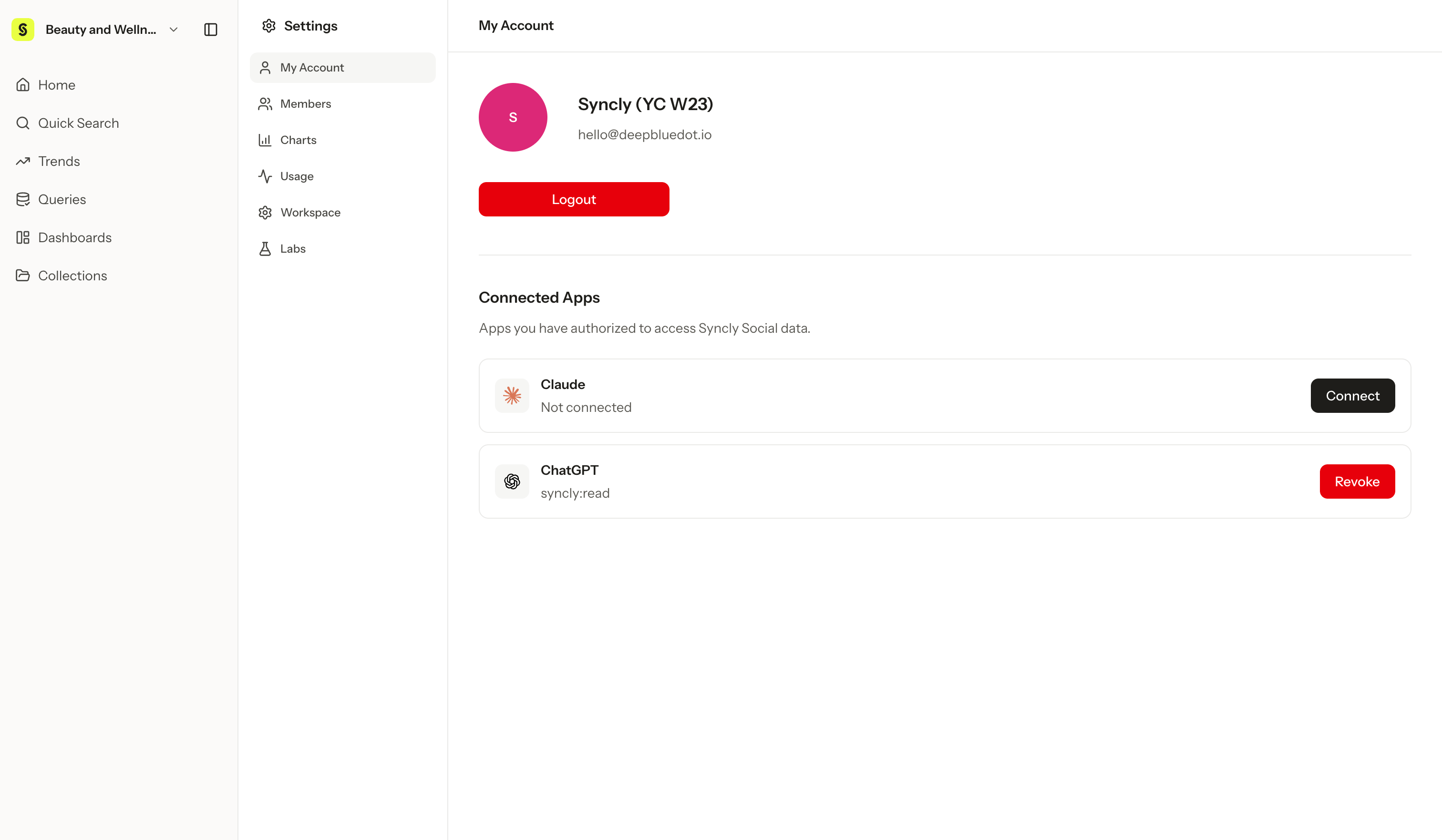
You can register a Syncly MCP connection URL in an AI client so the client can work with data from your Syncly workspace. This guide starts with Claude, which is the recommended first setup path. Other MCP clients such as ChatGPT, Cursor, and Claude Desktop may have different screens and support levels.

Before you start

  • You must be logged in to Syncly.
  • You must be a member of the workspace you want to connect.
  • MCP connection URLs are issued per workspace.
  • To connect a different workspace, copy the MCP connection URL from that workspace.
  • Do not share your MCP connection URL externally.

1. Copy the MCP connection URL from Syncly

  1. Log in to Syncly.
  2. Select the workspace you want to connect.
  3. Go to the workspace settings screen.
  4. Open the MCP URL panel in the General section.
  5. Copy the MCP connection URL shown in the panel.

2. Connect to Claude

Add Syncly as an external integration in Claude. Menu names may differ depending on your Claude plan or organization settings.
  1. Open Settings in Claude.
  2. Go to Integrations.
  3. Select Add Integration.
  4. Enter Syncly as the name.
  5. Paste the MCP connection URL copied from Syncly.
  6. Save the integration and open a new Claude chat.
  7. Check that Syncly appears in the tool selection area.

3. Connect to ChatGPT

ChatGPT Connector availability depends on your account plan, organization policy, and app environment. Continue only if you can see Connector settings in your ChatGPT account.
  1. Open Settings in ChatGPT.
  2. Go to Connectors.
  3. Add a new Connector.
  4. Enter the Syncly MCP connection URL.
  5. Save the Connector and start a new chat.
  6. Confirm that the Syncly Connector is enabled before sending a question.
Note: Some clients do not allow you to enable a Connector after a conversation has already started. Open a new chat after setup when testing the connection.

4. Connect to Cursor or Claude Desktop

Cursor, Claude Desktop, and other MCP clients are advanced setup paths. If your team has a standard client, follow your team’s setup guidance. The general flow is:
  1. Open the client’s MCP settings.
  2. Add a new MCP server.
  3. Enter Syncly as the server name.
  4. Register the Syncly MCP connection URL.
  5. Restart the client or open a new chat.
  6. Confirm that Syncly tools are available.
Some clients may require a configuration file instead of a direct URL field. If your client requires manual configuration, ask your technical owner or Syncly contact for the correct setup method.

5. Test the connection

After setup, start with a short test question in a new chat.
Tell me what data or tools are available in this Syncly workspace.
You can also try:
Summarize the latest analysis results in this workspace.
Start with a simple question to confirm the connection. Then ask more specific questions about Queries, posts, dashboards, or reports.

6. Manage the URL securely

The MCP connection URL is connection information for accessing a workspace.
  • Do not paste it into public documents, chat messages, or code repositories.
  • Do not forward it to other people.
  • Contact your Syncly representative if you think the URL has been exposed.
  • Remove Syncly from clients you no longer use.

Troubleshooting

SituationWhat to check
I cannot find the MCP URL in SynclyConfirm that you selected the correct workspace and that you are a workspace member.
Syncly does not appear in ClaudeOpen a new chat and confirm that Syncly was added under Integrations.
I cannot see Connectors in ChatGPTCheck whether your account plan, organization policy, and app environment support Connectors.
The connection works, but answers are vagueInclude the workspace, Query, time period, and expected output in your question.
I see data from the wrong workspaceCheck whether the registered MCP URL came from the workspace you intended to connect.
I shared the MCP connection URL externallyContact your Syncly representative.