
Create a Query
What is this feature?
A Query tells Syncly which brand, product, or topic to collect and analyze social data about. After creating a Query, you can review the collected Posts and analysis results in the Query Dashboard.When should I use it?
- When you want to monitor social conversations about your brand or a competitor
- When you want to understand reactions to a specific product or product line
- When you want to explore conversations and content trends around a campaign, issue, or consumer interest
Before you start
- You must have access to a workspace.
- You need permission to create Queries.
- Your workspace may have Query policies or usage limits.
- Available collection sources may vary by workspace.
How to use it
1. Select a Query type
- Enter the workspace.
- Open Queries from the workspace navigation..
- Select Brand, Product, or Topic.
2. Enter Query information
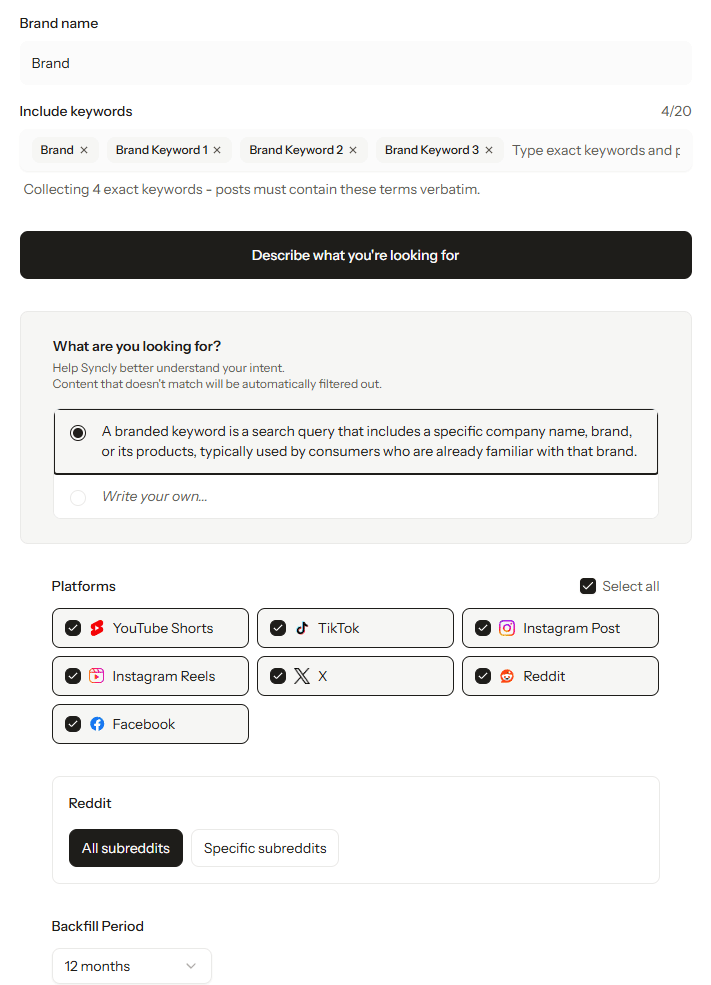
- Enter a Query name.
- Enter the keywords, Subject, and Target information for what you want to analyze.
- Select collection sources or conditions if needed.
- Review your inputs.
3. Continue after the Query is created
When the Query is created successfully, you are taken to its Query Dashboard. By default, the Performance tab or another primary analysis tab may open.Key options
- Query type: Brand / Product / Topic
- Query name
- Analysis target subject/target
- Collection sources
- Type-specific conditions such as language, region, and keywords