
Before you start
- Select posts with completed analysis in the current workspace.
- Viewing collections requires
Vieweror above (Viewer,Writer,Admin); creating or editing collections and adding or removing posts requireWriteror above (Writer,Admin). - A workspace supports up to 20 collections and up to 1,000 posts per collection.
- You can star frequently used collections to pin them to
Favoritesin the sidebar for quick access.
Save posts
- Select posts in Query or Competitive Research’s Posts view.
- Choose the action to save to a collection.
- Select the destination collection.
- Open the collection and confirm the selected posts are present.
Use a collection
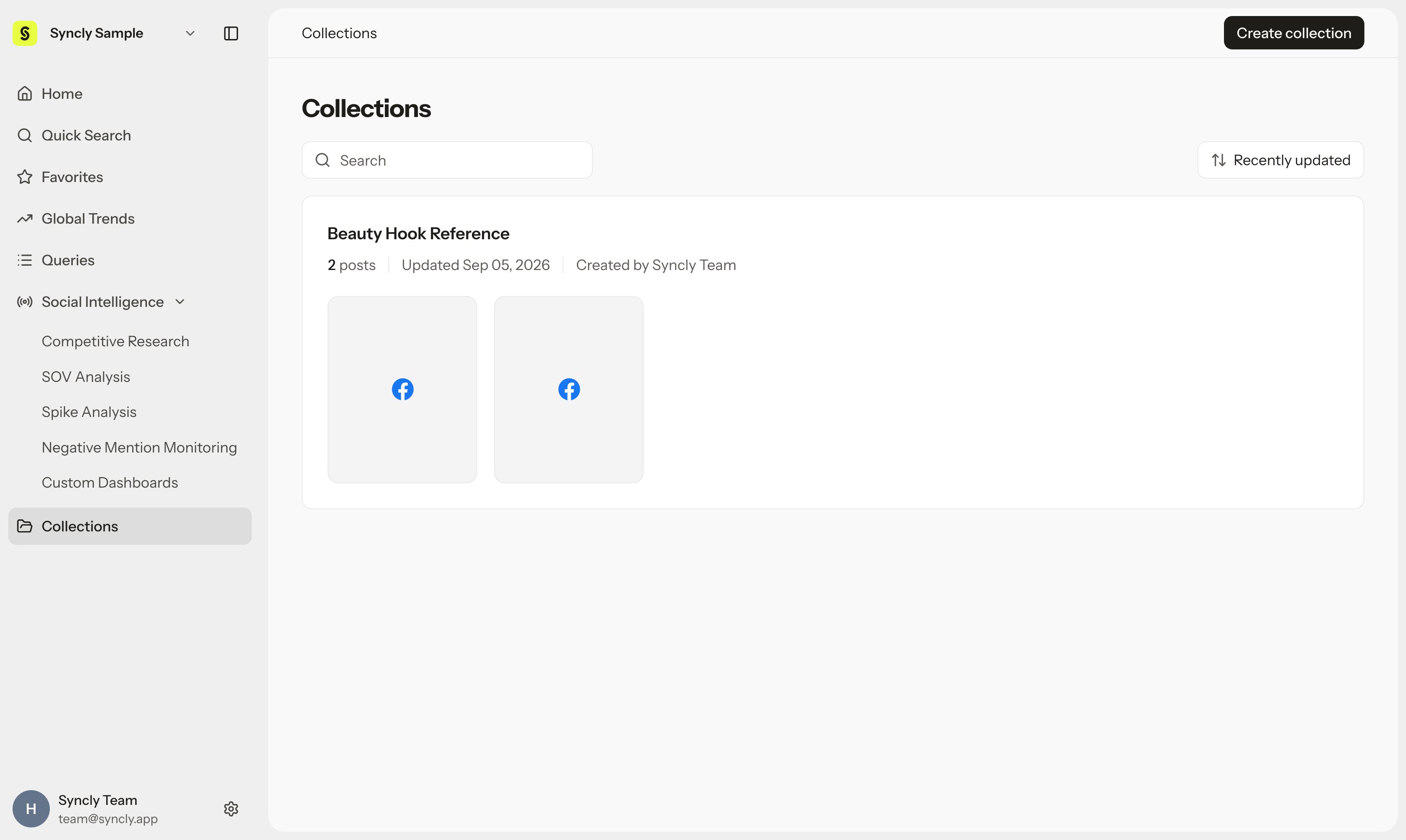
Open the collection to review its post list and filters. Select Ask Hey Syncly to ask questions about selected posts. In post detail, select or deselect collections to adjust where each post is saved. Collections are shared workspace assets accessible to all teammates. Use them to collaborate on campaign benchmarks and key competitor examples.Remove posts
Select posts in the collection and choose Remove from collection. This removes their membership in the collection; the original posts and underlying Query data remain completely intact.Confirm results and troubleshoot
- Check the collection’s name, description, and saved posts.
- If adding posts fails, verify your
Writeror above role, post analysis completion, and workspace limits (20 collections per workspace, 1,000 posts per collection). - If a collection name is already in use, choose a distinct name unused in the same workspace.
- Posts excluded from normal analysis through noise handling or Query deletion are also removed from collections. Restoring a normal association does not automatically restore earlier collection membership, so add them again if needed.