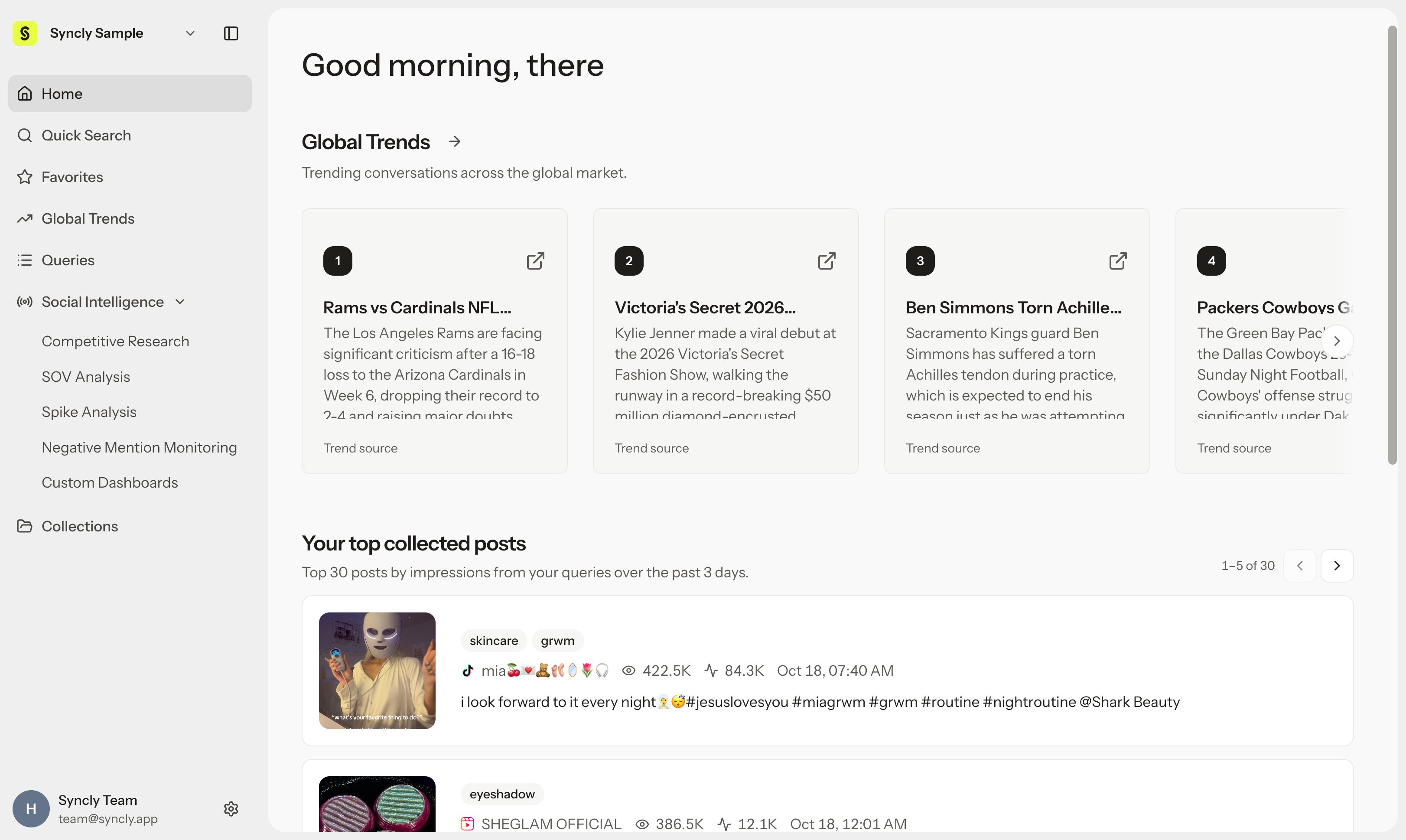
In Syncly Social, Queries define what data to continuously collect (Brands, Products, or Topics), while Social Intelligence in the sidebar is your dedicated analytics hub where you analyze, compare, and build custom dashboards from that data.
Select the optimal Social Intelligence tool to address your current brand questions and strategic objectives.
The Social Intelligence sidebar section provides five primary analysis tools:
Use Favorites in the upper sidebar to star (★) frequently used Competitive Research saved views, SOV Analysis, Spike Analysis, Negative Mention Monitoring, and Collections for one-click access.
Requirements and permissions
- Matching Query types: All Queries included within an analysis must belong to the same workspace and share the same Query type (all Brand, all Product, or all Topic) to ensure fair, apples-to-apples comparisons.
- Multiple connections: A single Query can be linked to multiple Social Intelligence tools (SOV, Spike, Negative Mention, Competitive Research) without restrictions.
- Permission tiers:
- Viewing analysis results and drilling down: Workspace
Viewer or higher (Viewer, Writer, Admin)
- Creating new analyses, saving views, and editing configurations: Workspace
Writer or Admin
- Query count requirements:
- SOV Analysis: Requires exactly 1 owned Query (
Owned) and at least 1 competitor Query.
- Competitive Research: Start with 1 or more Queries.
- Negative Mention Monitoring & Spike Analysis: Start with 1 or more Queries.
How results are generated and updated
- SOV Analysis: Calculates relative share and sentiment scores dynamically based on your selected Queries and date range.
- Negative Mention Monitoring: Delivers completed analysis reports organized by reference date via background batch processing. Opening the screen displays ready reports rather than initiating real-time computation.
- Spike Analysis: Select an anomalous spike date directly on the timeline chart and click Analyze; the system analyzes that specific date with surrounding context and displays the results upon completion.
- Competitive Research: Save your selected Queries, date range, and filter combinations using Save view so team members can return to the exact same analytical context at any time.
Management best practices
- Data collection independence: Removing an analysis item or saved view from Social Intelligence does not delete the underlying Queries or interrupt their ongoing data collection.
- Archived Queries: When connecting an archived Query to an analysis, historical data remains accessible, but live streaming does not restart. Use active, collecting Queries when tracking real-time trends.