
Trends) lets you explore dated daily and weekly social trends by country and theme. Track industry momentum and emerging themes, and set up automated email subscriptions to share updates regularly with your team.
Before you start
- Any member with
Vieweror higher (Viewer,Writer,Admin) permissions can explore trends. - Creating or managing recurring email subscriptions requires
WriterorAdminpermissions.- A
Writercan edit or delete subscriptions they created. - An
Admincan manage and configure all subscriptions across the workspace.
- A
Explore trends
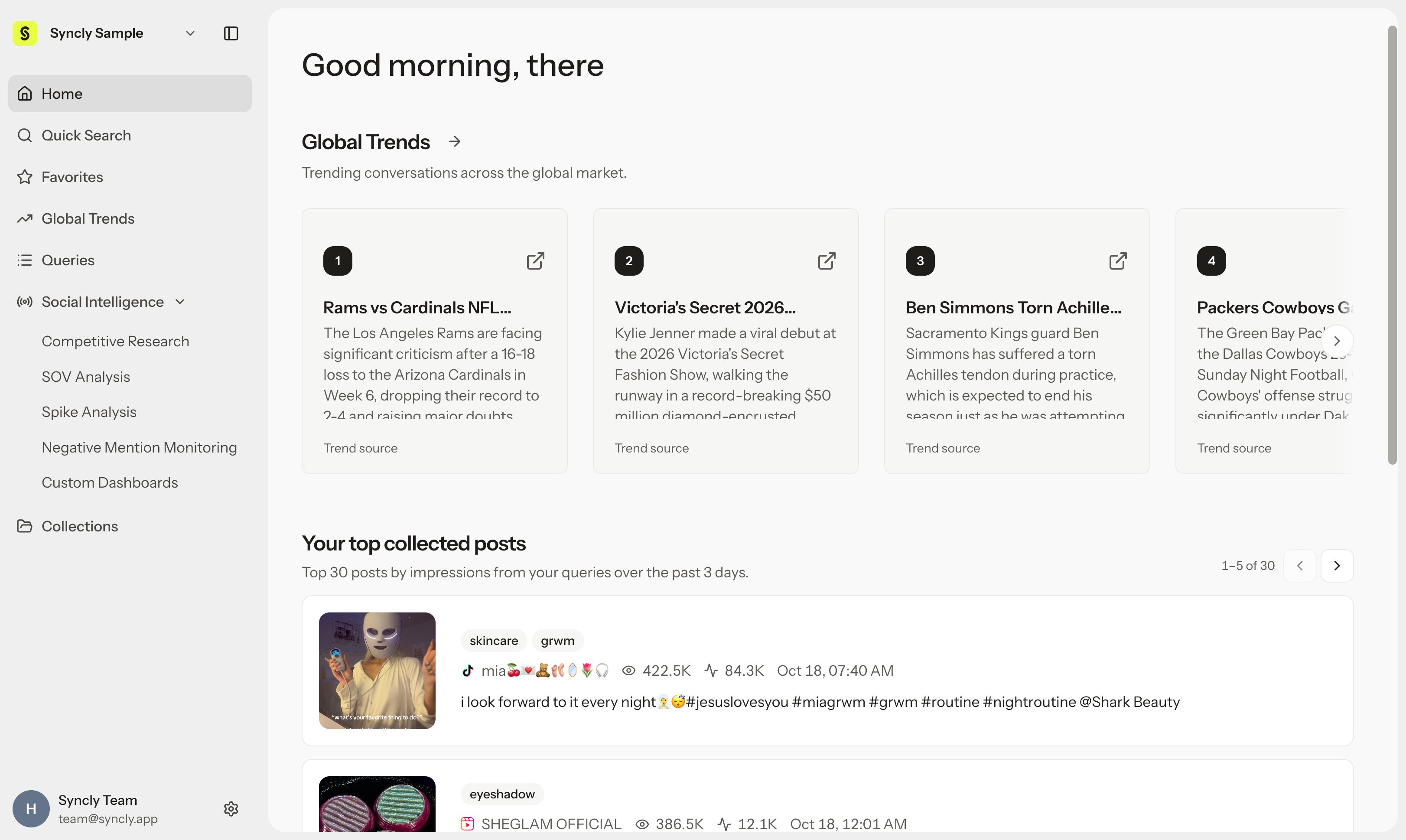
- Select Global Trends (
Trends) from the left sidebar. - Choose Daily or Weekly aggregation at the top.
- Select your target reference date.
- Filter by target countries and relevant themes.
- Click any trend card to inspect the driver summary and underlying reference posts.
Create an email subscription
- Click Subscribe in the top right of the Global Trends screen.
- Select the option to create a new subscription.
- Choose the countries, themes, and daily or weekly aggregation content to include.
- Set recipient email addresses (workspace members or external stakeholders) and the delivery time.
- Save your settings and verify active status in the subscription list.
Weekly aggregation and delivery schedule:
Selecting ‘Weekly’ specifies a 7-day rolling aggregation window for trend insights. Subscriptions are delivered daily at your scheduled workspace delivery time. When you save a new subscription, email delivery begins at the next scheduled delivery time.
Manage subscriptions
- Edit settings: Open an existing subscription in Subscribe to update recipients, delivery time, or country and theme filters. Changes take effect on the next scheduled delivery.
- Unsubscribe and delete: Delete subscriptions you no longer need. Individual recipients can also opt out at any time using the unsubscribe link provided in every email.
Tips and verification
- If Global Trends does not appear in the sidebar, verify your workspace plan and feature access with a workspace
Admin. - Weekly trends populate once the weekly aggregation cycle finishes. For the latest real-time movements, select the Daily tab.
- If a scheduled email does not arrive, verify the recipient email address, the workspace scheduled delivery time, and your spam folder.