
Before you start
- Same workspace and Query type: Queries to compare must belong to the same workspace. Comparing Queries of the same type (Brand, Product, or Topic) provides the most meaningful analytical benchmarks.
- Permission requirements: Reviewing results and browsing tabs requires workspace
Vieweror higher (Viewer,Writer,Admin), while saving or modifying views requiresWriterorAdminpermission. - Dedicated share analysis: To quantitatively measure relative share percentage (%) and sentiment scores between your brand and competitors, use SOV Analysis.
Start a comparison
- Navigate to
Social Intelligence > Competitive Researchin the sidebar and click Start research at the top. (Alternatively, click Research in the top right of an individual Query detail page to launch research with that Query preselected.) - Add one or more Queries of the same type using the selector at the top.
- Select an analysis date range (e.g., Last 7 days, Last 30 days, or a custom range).
- Refine shared filters such as platforms, languages, and sentiment.
- Switch between analysis tabs to examine specific dimensions.
- For configurations you revisit regularly, click Save view in the top right, enter a view name, and save. When updating an existing view, click Save changes to apply your adjustments.
When starting fresh with Start research, the view opens with no Queries selected. Choose the Queries you wish to analyze at the top. Saving a view requires at least one selected Query.
Explore the 5 analysis tabs
Competitive Research offers five analytical tabs. All tabs consistently inherit your selected date range and shared filters.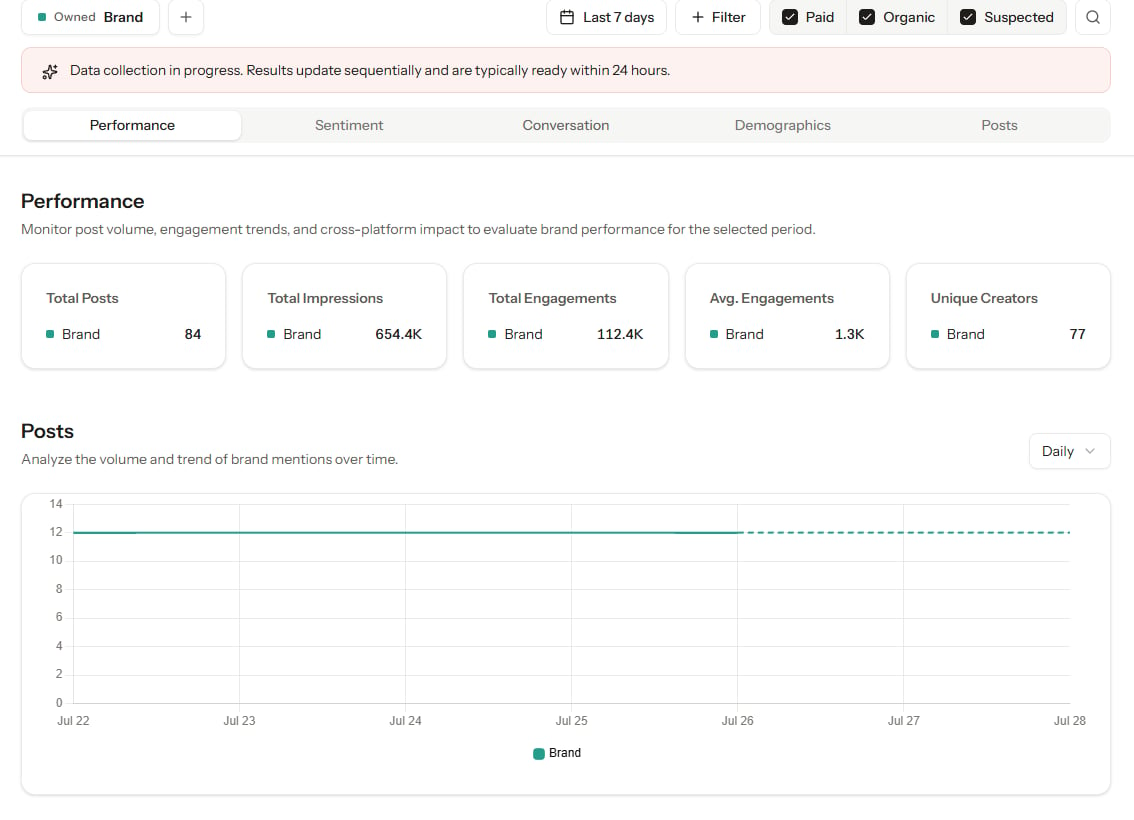
- Performance: Compare post volume, impressions, engagements (likes, comments, shares), and engagement rates across Queries and platforms to see which brands or products command market visibility.
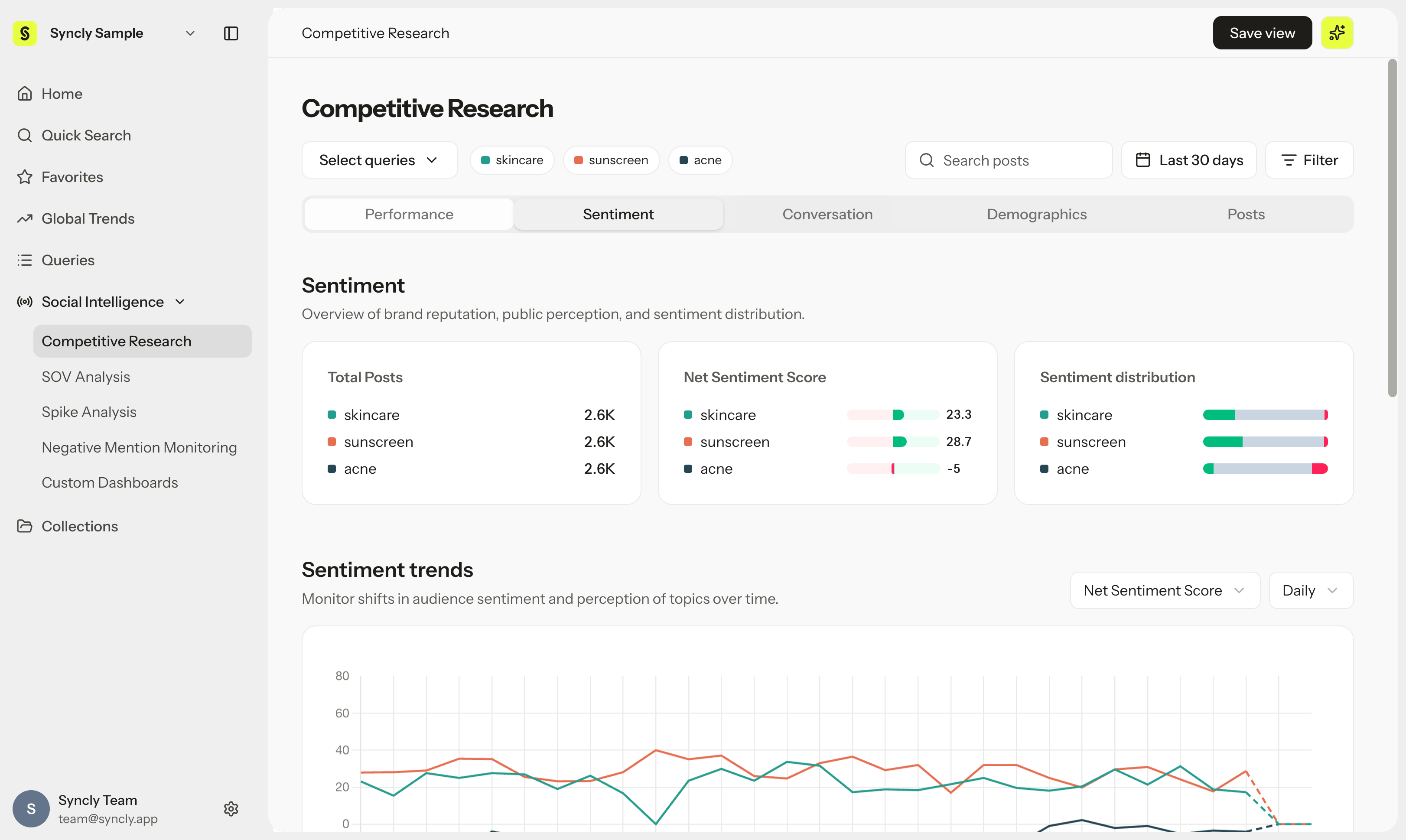
- Sentiment: Contrast distributions of positive, neutral, and negative sentiment over time. Review AI sentiment classifications and examine source posts around distinctive sentiment spikes.
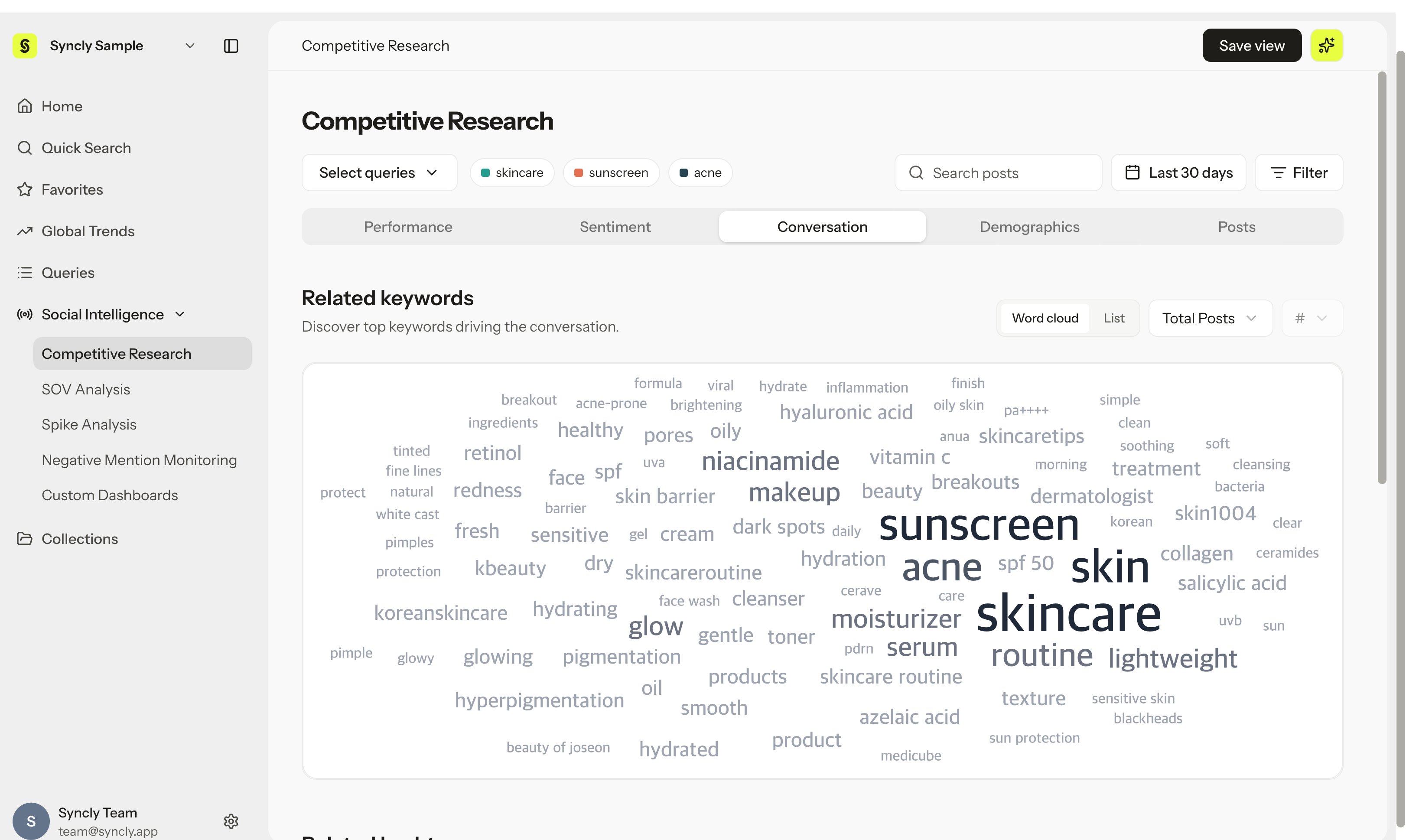
- Conversation: Explore top keywords, trending hashtags, and co-occurring terms to discover the topics and attributes consumers associate with each brand or product.
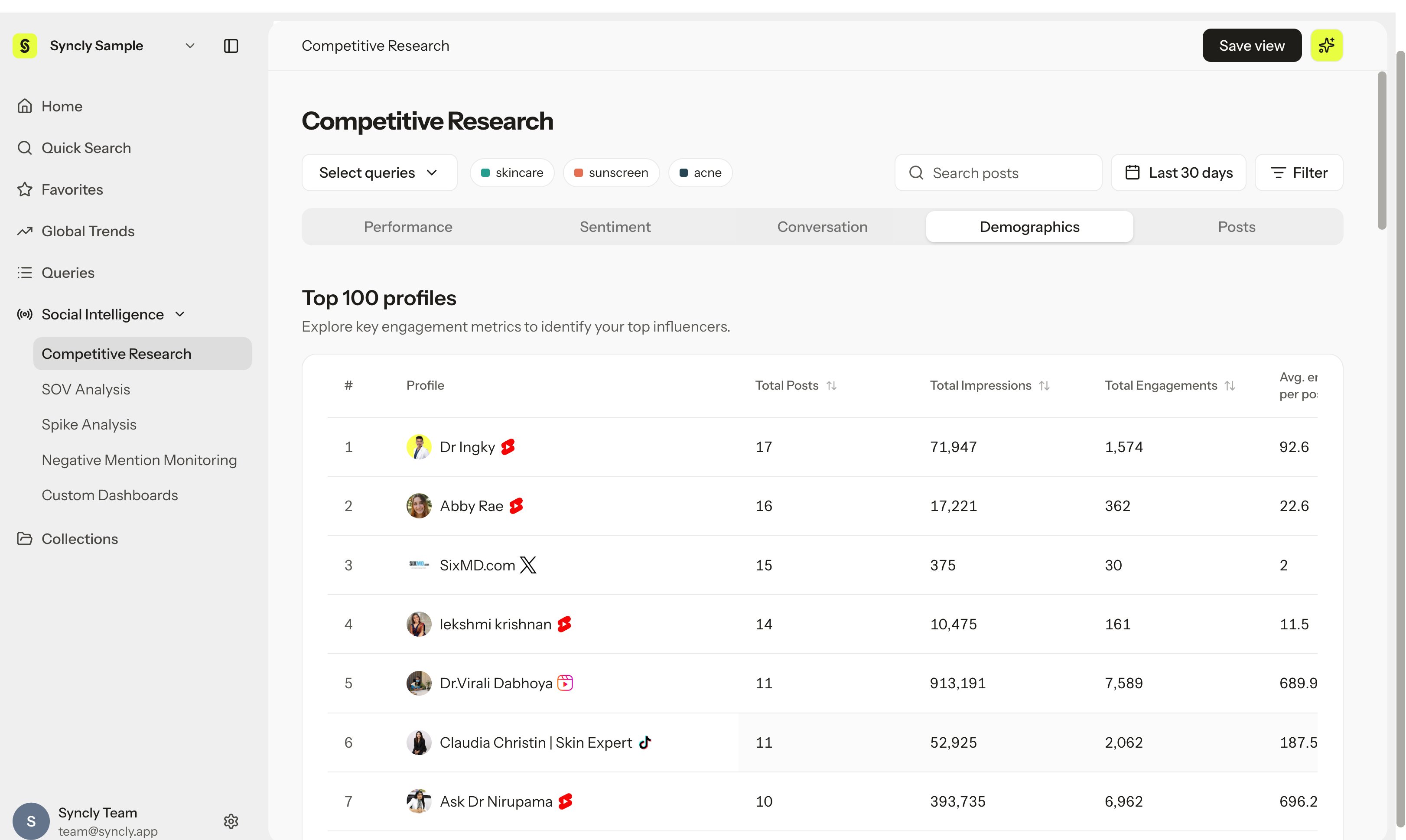
- Demographics: Review estimated age groups, gender breakdowns, and core audience interests to uncover differences in follower demographics.
- Posts: Browse the underlying post stream matching your active filters. Inspect high-impact posts and save valuable creative evidence to Collections.
Reopen saved views and use Favorites
- Saved views list: Navigate to
Social Intelligence > Competitive Researchand open the Saved views tab to view all saved configurations. Clicking a view restores its exact Query selections, date range, and filters. - Favorites: Click the star icon (★) next to any saved view to pin it to Favorites in the upper sidebar for instant one-click access.
- Update configurations: After adjusting filters or dates on a saved view, click Save changes to preserve those updates for your next visit.