
Before you start
You need Viewer permission or higher in the workspace. If no Query exists yet, create a Query first.Open a Query
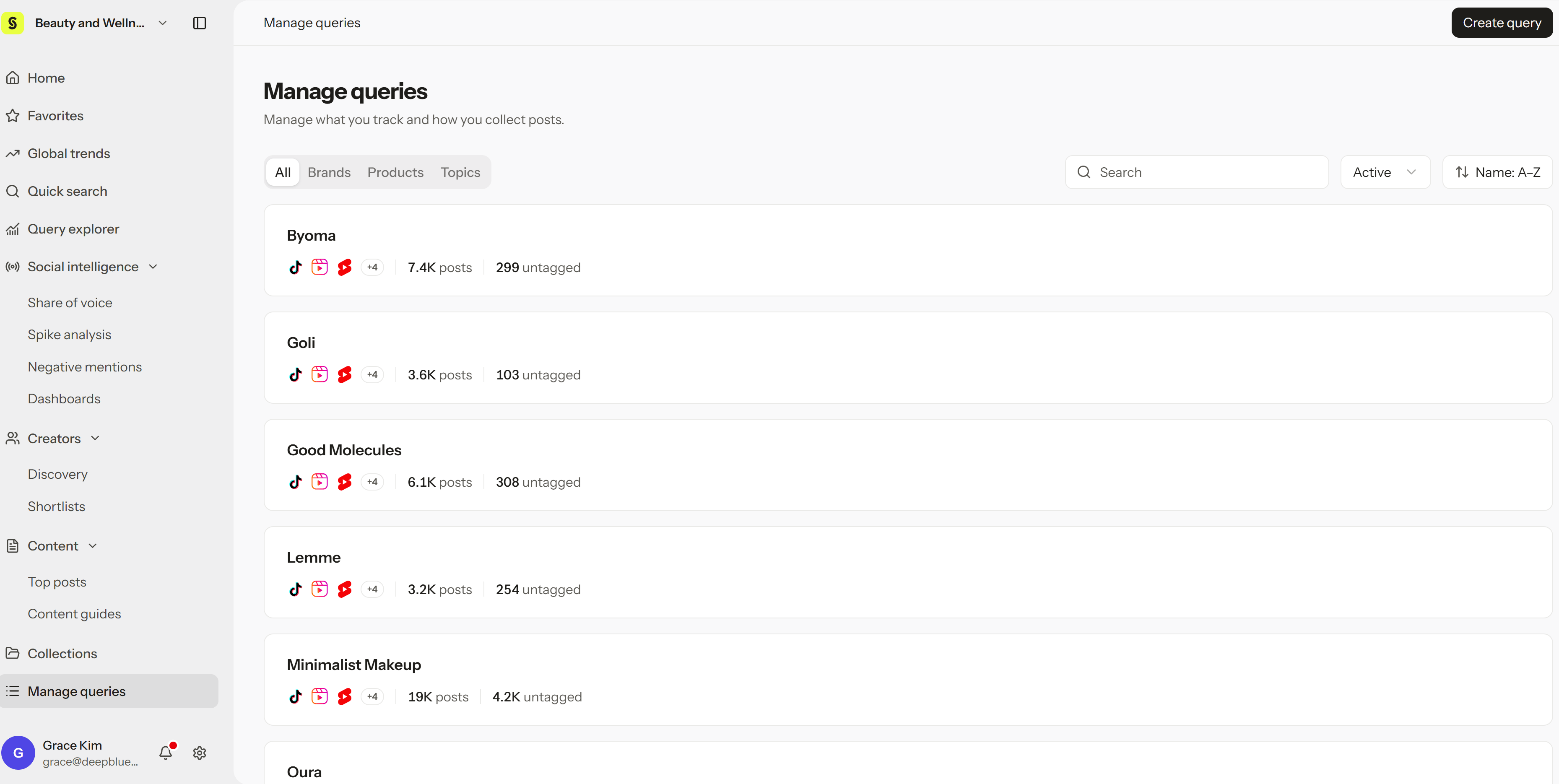
- In the sidebar, select Manage queries.
- Choose Brands, Products, or Topics, then select a Query.
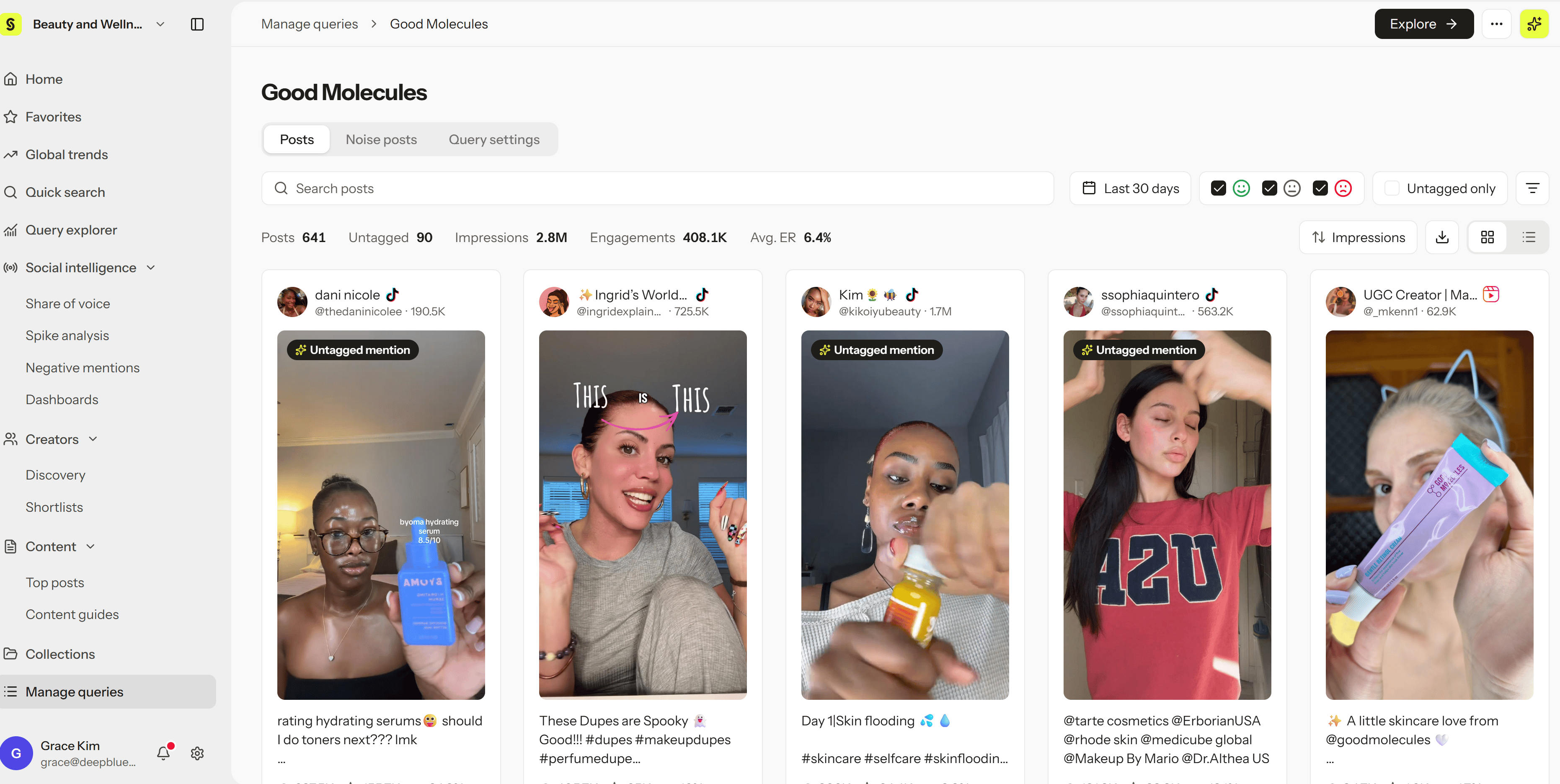
- Review collected posts in the Posts tab, which opens by default.
- Adjust the date range, search, filters, and sort order as needed.
- Select a post to see its detailed analysis.
What each tab shows
- Posts: Posts collected for this Query. Turn on Untagged only to see posts that mention the brand without tagging it.
- Noise posts: Read-only examples that were classified as noise for this Query. Select View original to open the source post and confirm it’s really noise.
- Query settings: The Query’s analysis criteria, included and excluded keywords and accounts, and platforms.
Explore and compare
Select Explore at the top of Query detail to open Query explorer with only this Query selected. This starts a new exploration rather than adding to one you had open. In Query explorer, you can add other Queries of the same type to compare performance, sentiment, and conversation across brands or products.Confirm results
Check that the Query name, date range, and filters match what you want to review. From post detail, select Back to gallery to return to the Query’s post list.Troubleshoot
- Posts haven’t appeared yet: Check the Query’s collection progress, then make sure the date range and filters aren’t too narrow.
- Noise posts is empty: No posts have been classified as noise under the current conditions. You can keep reviewing posts in the Posts tab.