
Before you start
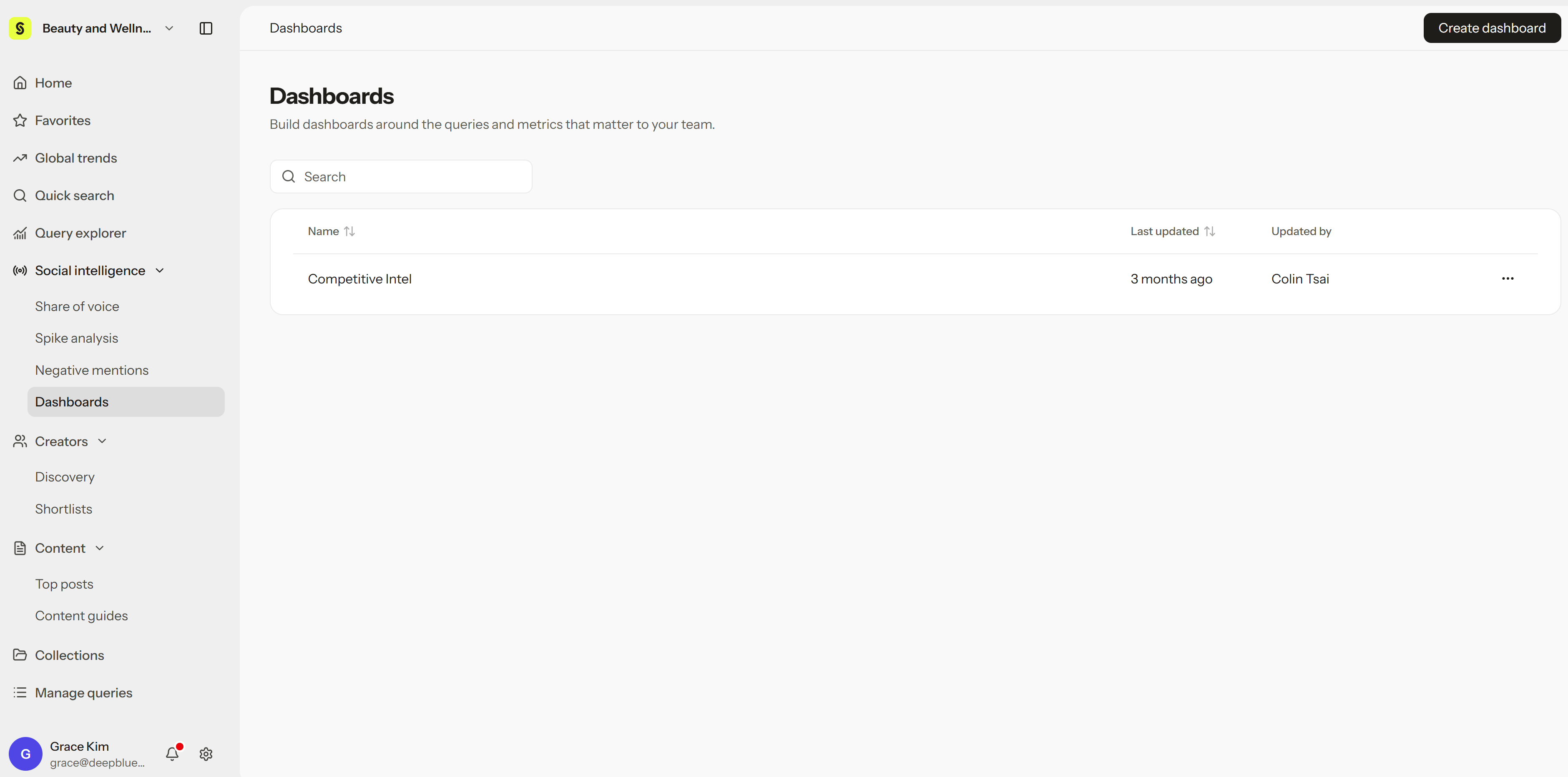
- In the sidebar, open Social intelligence > Dashboards.
- Permissions:
- Viewer or higher can view dashboards, open the posts behind charts, and export dashboards to PDF.
- Editor or Admin can create, edit, duplicate, and delete dashboards and charts, and export chart data to XLSX.
- Charts in a dashboard must come from the same workspace.
Create a dashboard
- Open Social intelligence > Dashboards.
- Select Create dashboard.
- Enter a title and a short description of what the dashboard tracks.
- Finish creating it to open the empty dashboard.
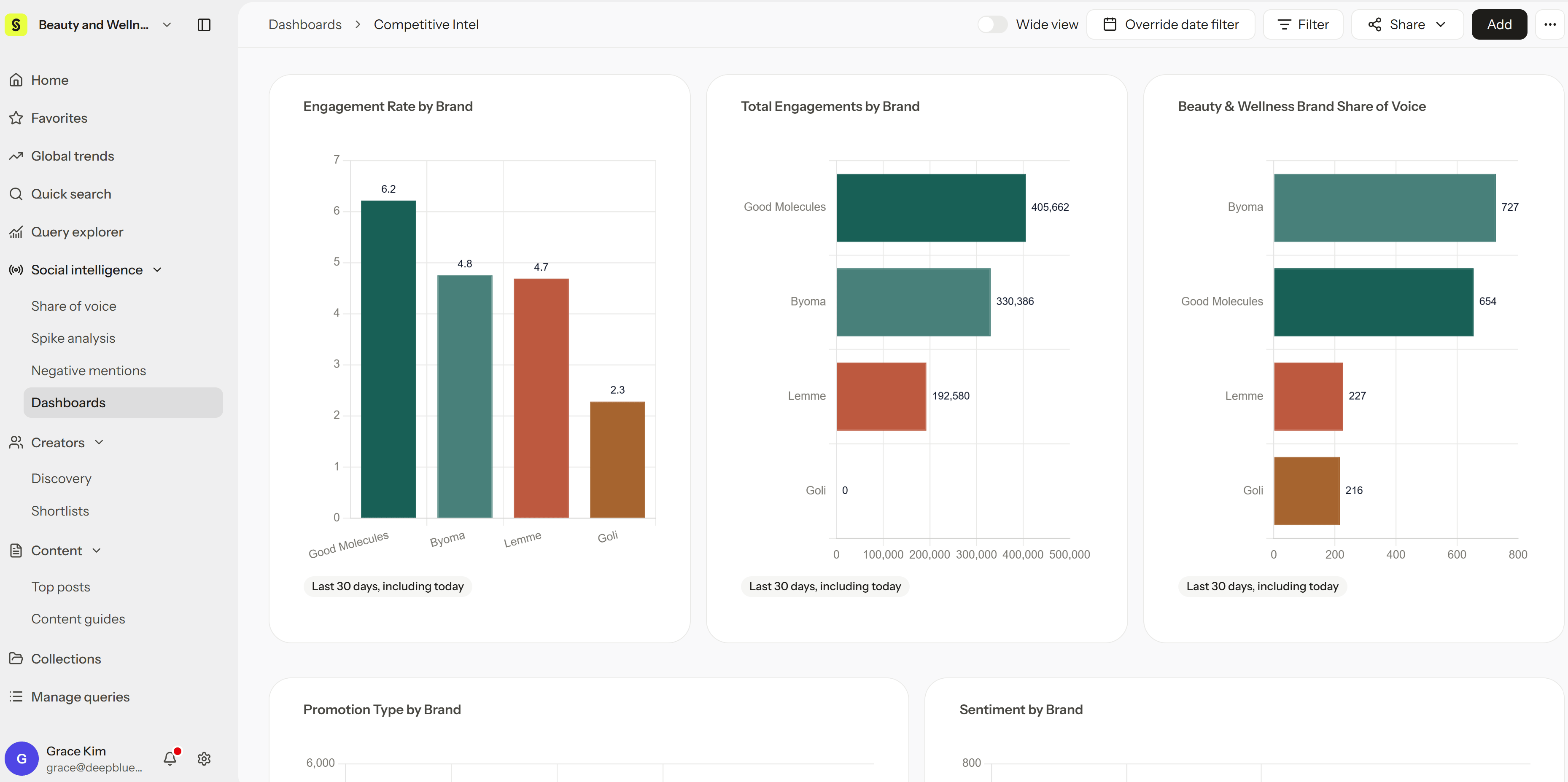
Lay out rows and columns
- Select Add row to add a new row.
- Split the row into columns and adjust their widths.
- Choose what each column shows: Chart, Text, or Post list.
- Drag blocks to rearrange them, and adjust their height.
What each column can show
- Chart: A chart from your workspace. It updates with live data.
- Text: Notes such as a summary, background, key takeaways, or next steps.
- Post list: A live list of posts that match filters you set, such as a hashtag, negative sentiment, or high engagement.
Set up a chart
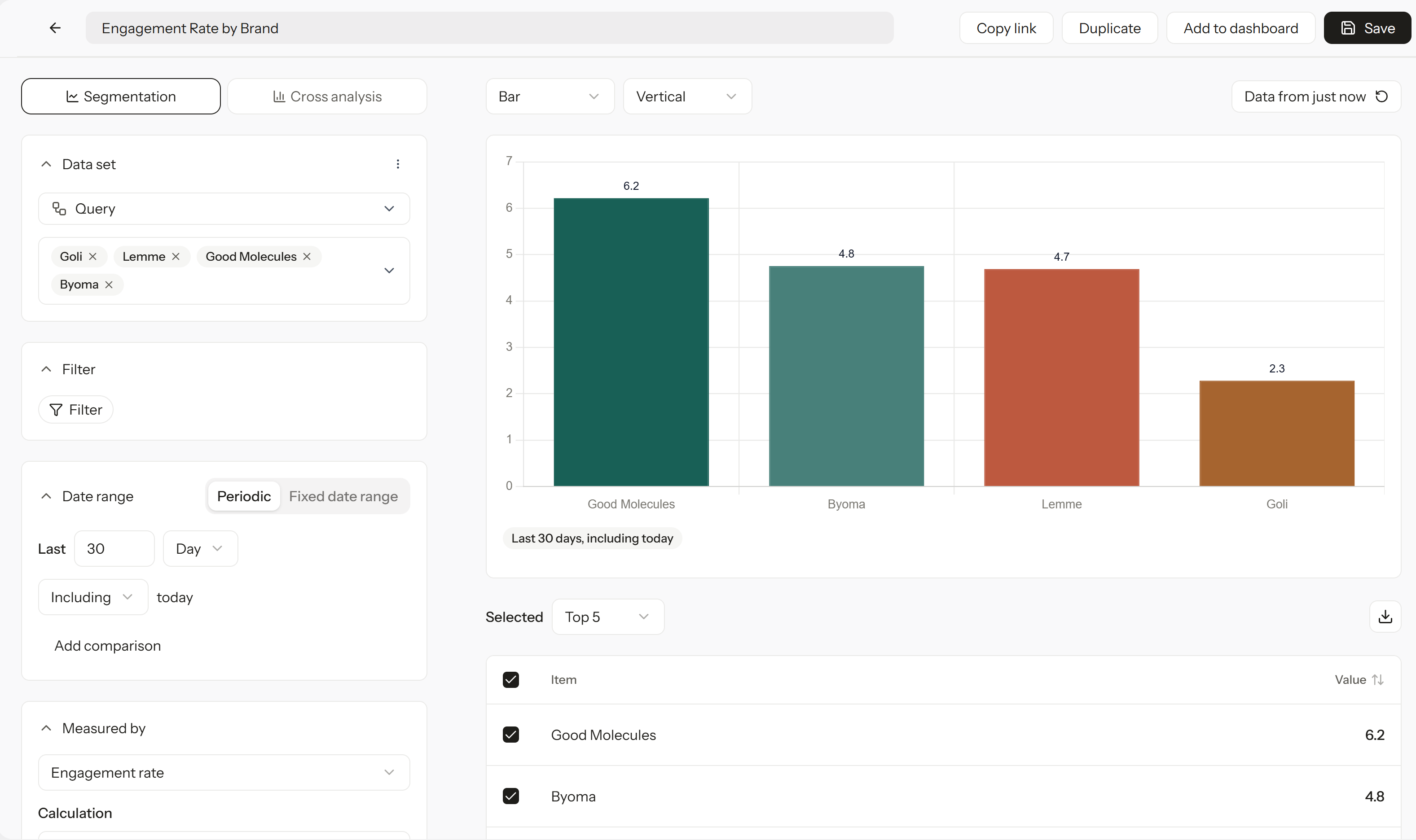
Charts are built in the chart editor, then added to a dashboard. Choose one of two modes at the top:- Segmentation: Compare one metric across the items you select, such as engagement rate by brand.
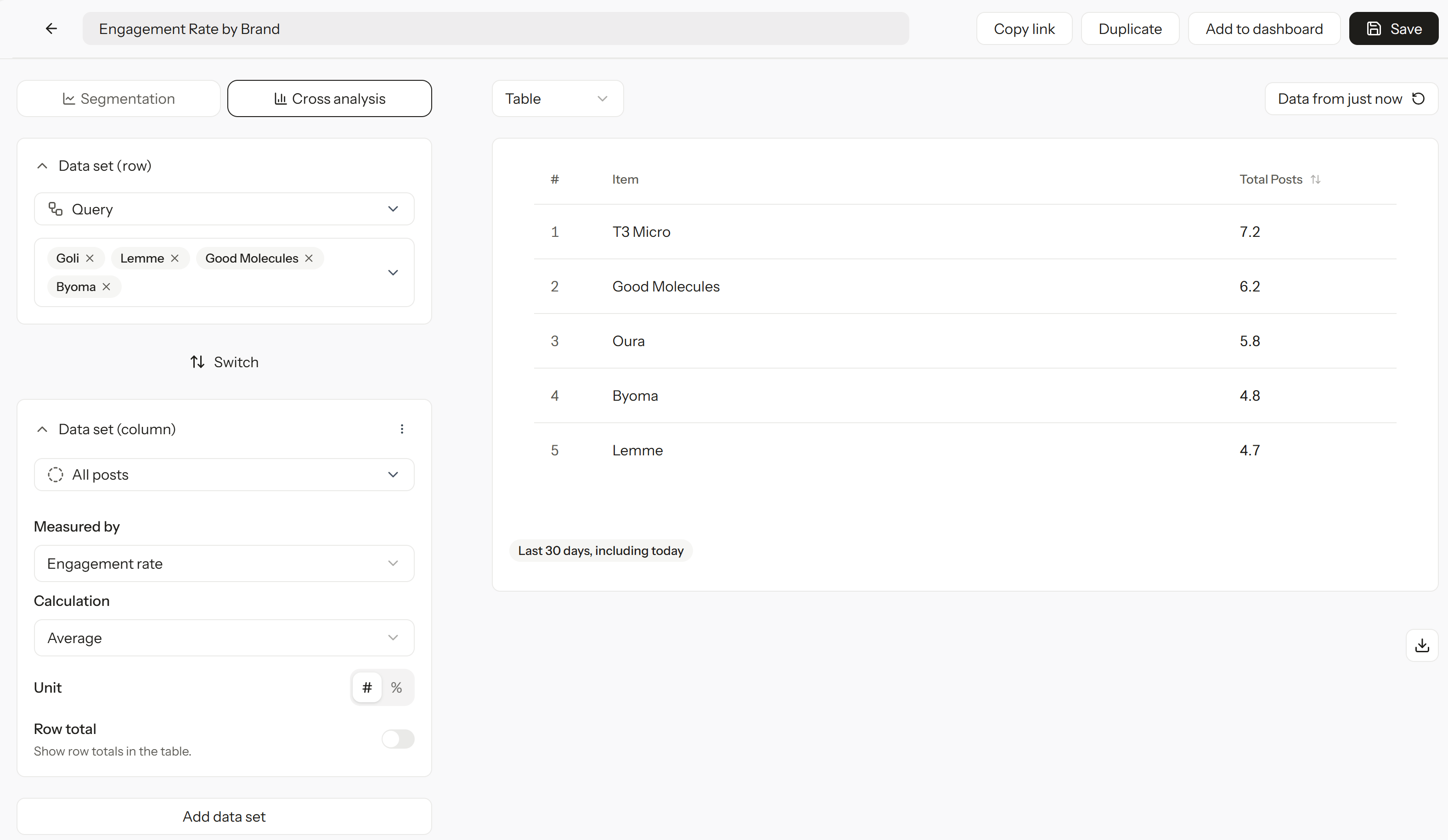
- Cross analysis: Build a table that breaks a metric down by two data sets at once, one for rows and one for columns.
Segmentation
- Under Data set, choose Query and select the Queries to compare.
- Under Filter, narrow the data if needed.
- Under Date range, choose Periodic (for example, the last 30 days, including today) or Fixed date range. Select Add comparison to compare against an earlier period.
- Under Measured by, choose a metric, such as engagement rate, and choose Average or Sum under Calculation.
- Choose the chart type (such as Bar) and orientation (such as Vertical) above the chart.
Cross analysis
- Under Data set (row), choose what each row shows, such as your Queries.
- Under Data set (column), choose what each column shows, such as All posts. Select Switch to swap rows and columns.
- Under Measured by, choose a metric and choose Average or Sum under Calculation.
- Choose a Unit: # for numbers or % for percentages. Turn on Row total to show totals for each row.
- Select Add data set to add more columns, then set the Filter and Date range as needed.
Save and add to a dashboard
- Select Save to keep your chart.
- Select Add to dashboard to place it on a dashboard.
- Select Data from just now to refresh the data.
- Copy link shares a link to the chart, and Duplicate makes a copy you can edit.
See the posts behind a chart
Click any point, bar, or table cell to open a preview of the matching posts. Check captions, creators, and engagement in the preview, or select Show more to open the full list. From there, you can save useful posts to a Collection. This works the same way for charts in Query explorer.
Adjust the view
- Date range: Use the date control at the top right to view the whole dashboard for a different period. This only changes your current view; each chart keeps its own saved settings.
- Wide view: Turn on Wide view to use the full width of your screen.
Share and export
- Share a link: Open the Share menu at the top right and select Copy link to send the dashboard to teammates in your workspace.
- Export to PDF: In the same menu, select Export to PDF to download the dashboard. Wait until all charts have finished loading first.
- Export chart data: In the chart editor, select the download icon above the results table to export the chart’s data to XLSX. See Export posts to XLSX.
Manage dashboards
From the dashboard or the list, you can:- Rename a dashboard or update its description.
- Duplicate it to reuse the layout for another product or team.
- Favorite it to pin it to Favorites in the sidebar.
- Delete dashboards you no longer need.