
Before you begin
- You can select multiple Queries of the same type: Brand, Product, or Topic. Selecting a different type replaces the current selection.
- Select at least one Query to analyze results or save a View.
- Viewer permission or higher is required to review results. Editor or Admin permission is required to create or update Views.
- To compare your brand’s share against competitors, use Share of voice.
Open Query explorer
Choose Query explorer in the sidebar. It opens directly on the Posts tab, with no separate start step. You can also open Manage queries and select Explore on a Query to start with only that Query selected.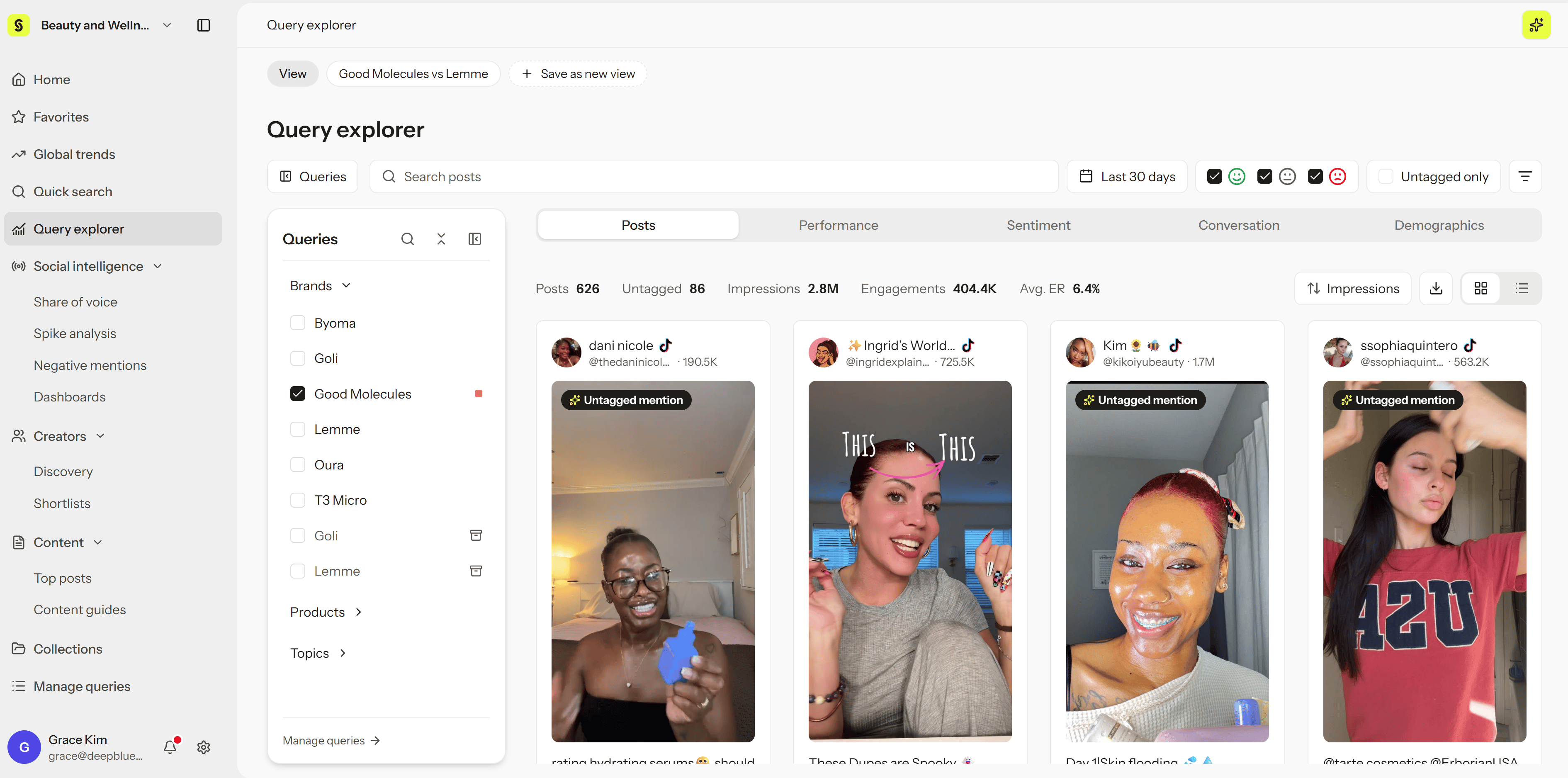
Select Queries
- Open the Queries panel.
- Choose Brands, Products, or Topics, or search for a Query by name.
- Select one or more Queries of the same type. Select a checked Query again to remove it.
- To explore a different type, choose that type. It replaces the current selection.
- If you clear all Queries, Query explorer returns to an empty state. Results can’t be analyzed and a View can’t be saved until you select a Query.
Explore results
Use the tabs to explore different aspects of the selected Queries:- Posts — Browse posts that match your selected Queries and conditions. This tab opens by default.
- Performance — Compare post volume, impressions, engagements, and engagement rates.
- Sentiment — Review positive, neutral, and negative sentiment. To see why a post was classified a certain way, open it in post detail.
- Conversation — Explore keywords, hashtags, and related terms.
- Demographics — Review the estimated age and gender of creators.
Work with selected posts
On the Posts tab, select posts to open the selection bar. From there you can:- Save them to a Collection
- Save their creators to a Shortlist
- Ask Hey Syncly about them
- Mark them as noise. See Explore posts and mark noise.
Save and update Views
A View saves your selected Queries, date range, and filters so you can return to them later. Use the View chips to switch between saved Views.- Save as new view saves the current conditions as a new View. Enter a name when prompted.
- To rename a View, open it and select Rename.
- After changing an existing View, select Save changes to keep the update.
- Select Reset to undo unsaved changes to the current View.