
Before you start
- Queries: Prepare at least one Query. If you use more than one, they must be the same type (Brand, Product, or Topic).
- Permissions: Viewer or higher can view results and source posts. Editor or Admin can create analyses and run Analyze on a date.
- Analysis runs per date: Creating a Spike analysis doesn’t analyze anything yet. You choose a date on the chart and run Analyze.
Analyze a spike date
- In the sidebar, open Social intelligence > Spike analysis. Select Start analysis to create one, or open an existing one.
- Adjust the chart’s date range to find the jump.
- Select the date where impressions or mentions peaked.
- Select Analyze.
- When processing finishes, open the result.
- Review the Key Driver, themes, and source posts.
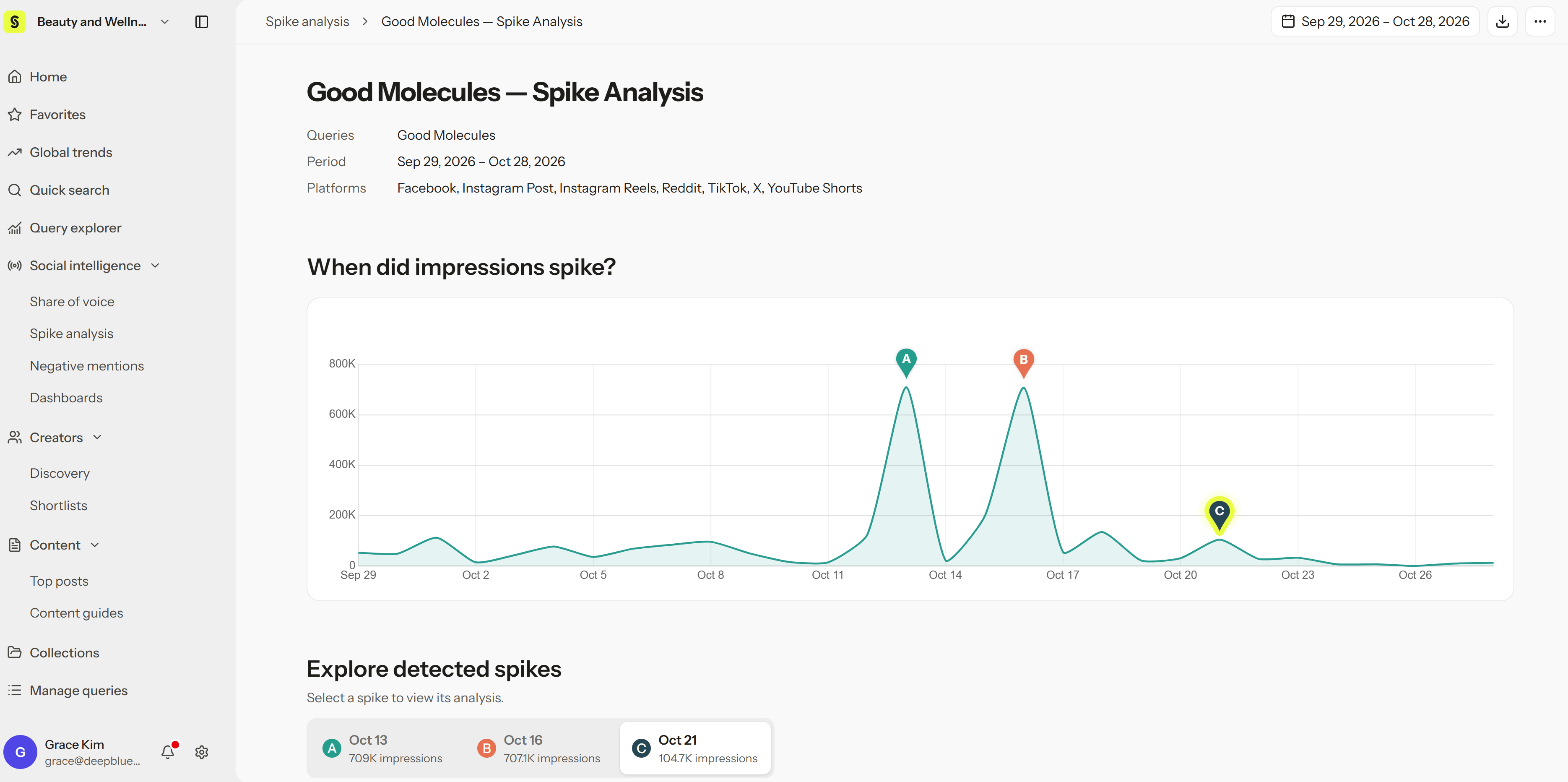
Read the results
1. The 5-day window (D-2 to D+2)
The report shows impressions, posts, and engagements for five days: two days before the spike, the spike date, and two days after. This tells you whether it was a one-day jump or part of a longer wave.2. The spike date
- Key Driver: An AI summary of the content and conversation on the spike date, pointing to what most likely drove the jump.
- Themes and outside events: Links the conversation to possible real-world triggers, such as a launch, a creator trend, press coverage, or an event.
- Source posts: The posts with the most impressions and engagement that day. Open any post to see the video, audio, and comments.
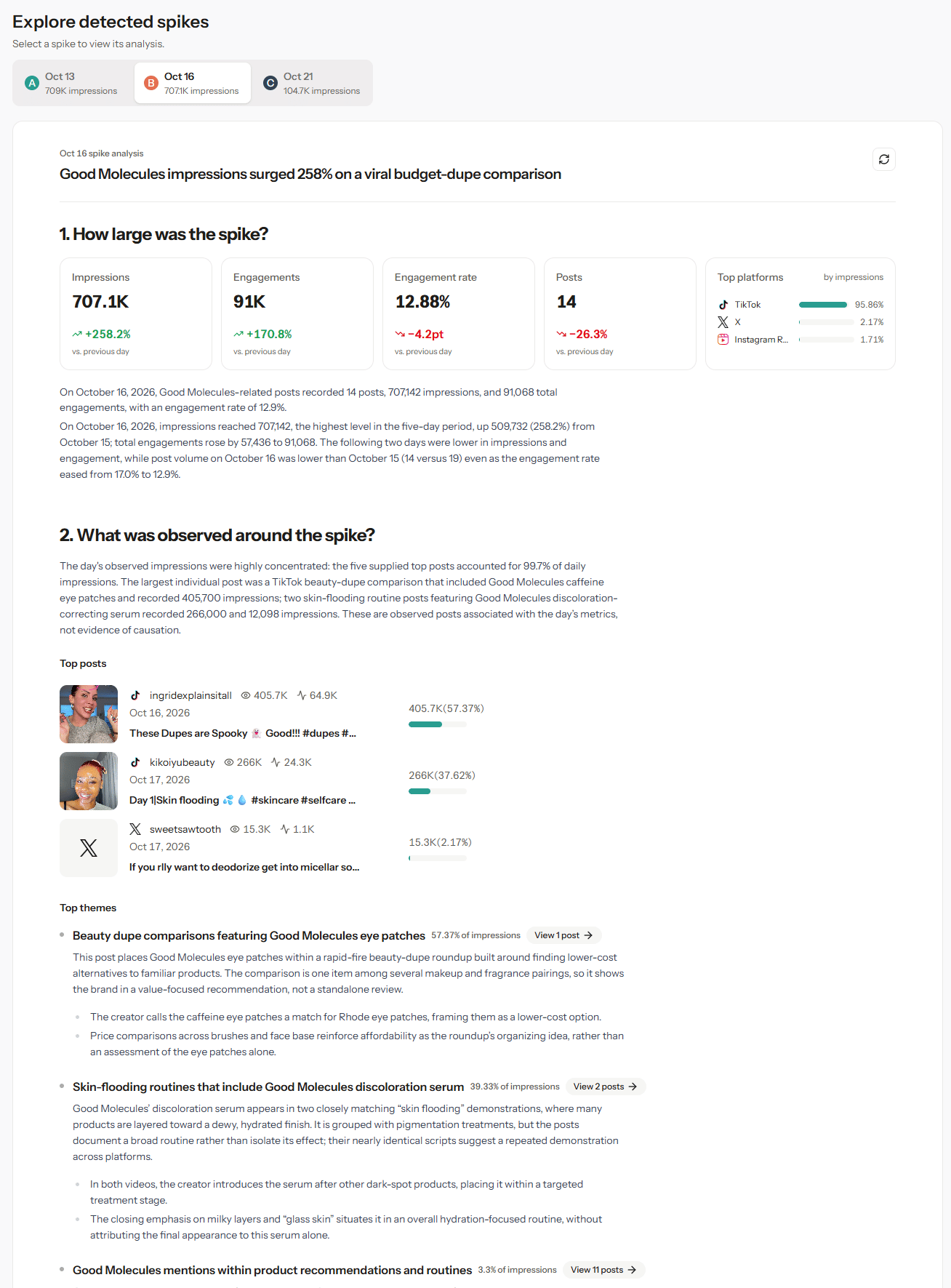
The 5-day numbers give context, but the Key Driver and themes cover only the selected spike date. Treat the Key Driver as a strong lead, not proof of what caused the spike, and check the source posts before drawing conclusions.